Using GrabCad Print Voxel Tool
Info
This slide teach you how to use the GrabCad Print Voxel Tool. This page is created for ISDN2400 to submit their assignment smoothly.
Pre-requisite
- You should have a "multichannel_" folder (e.g.: multichannel_20260416_180306_849) which contains all the png files exported from Rhino Grasshopper Voxel Print tool.
- You should have GrabCad Print installed on your computer
Access the Voxel Print Tool in GrabCAD Print
- Go to ""C:\Program Files\Stratasys\PolyJet API Service\VoxelFileCreateUtil.exe"" and start the program
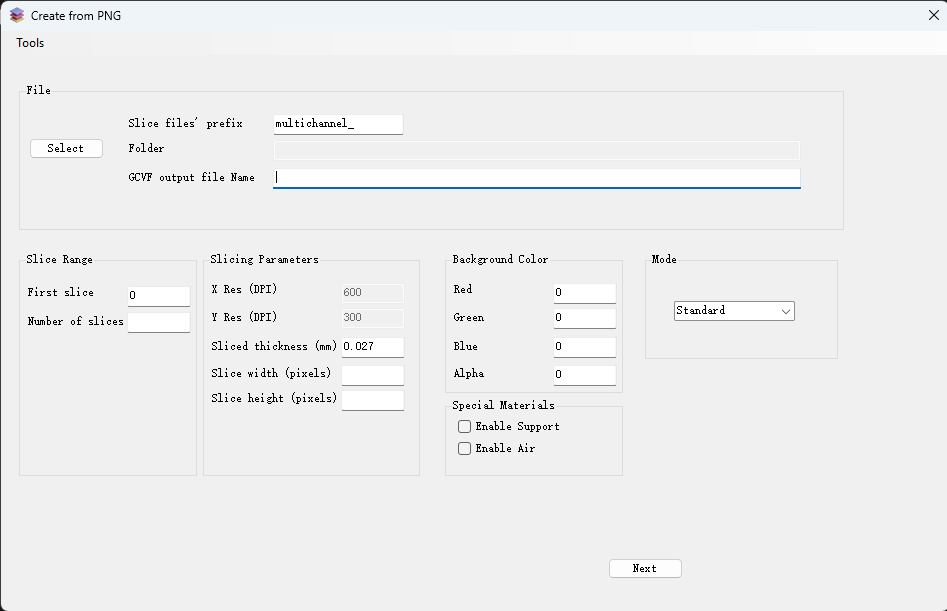
- In this image, fill in the "Slice files' prefix", select your GCVF output file folder. Change Alpha background color amount to "0". Then click Next.
- Then select the material corresponding to the colors in the PNG files. Since we changed the material, for all new submission make soft material Agilus30Black and make rigit material VeroClear.
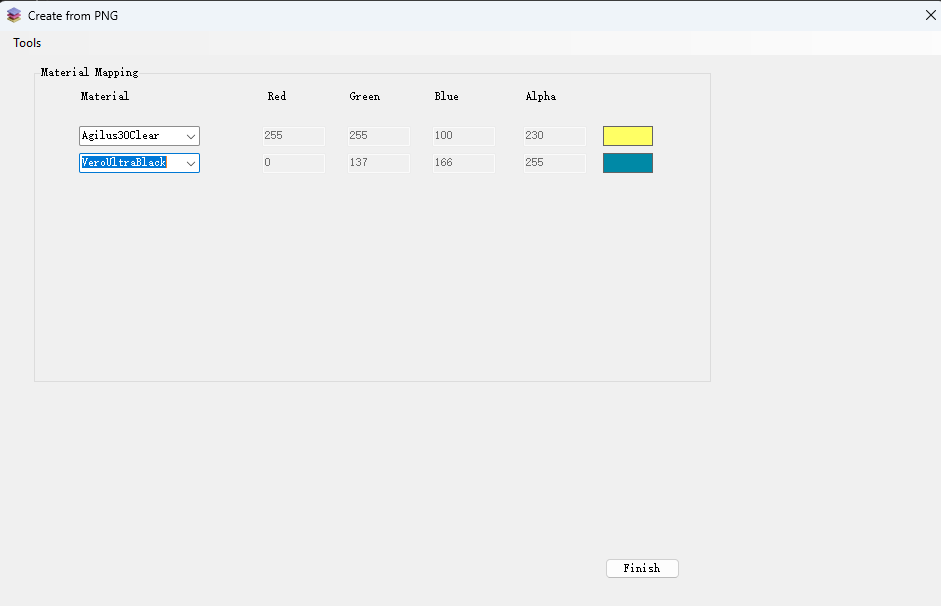
- Click "Finish" and it will export a GCVF file. You need to submit this file to the TA for printing.